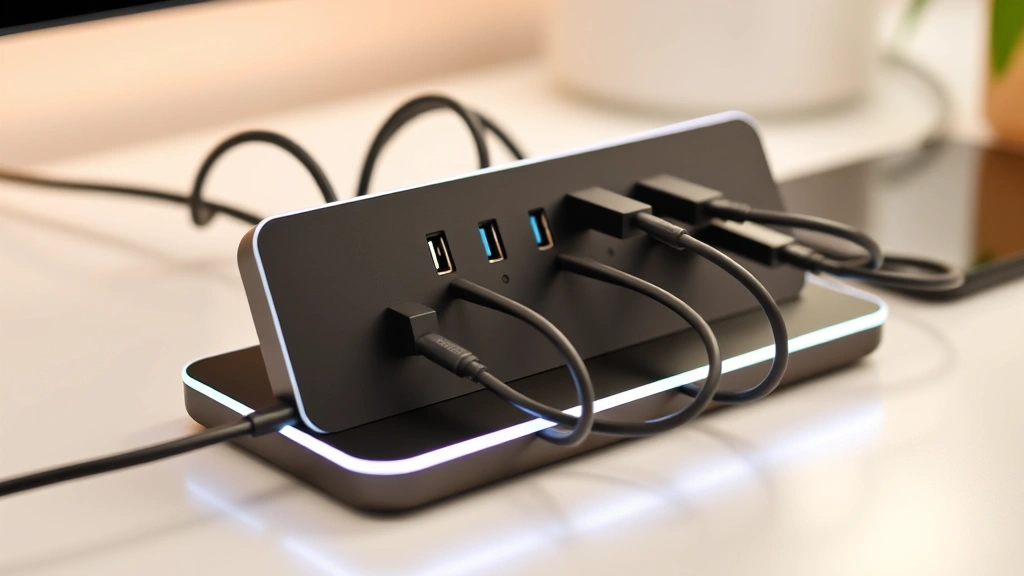
Look, if you’re anything like me, you’ve probably stood in front of your gadget collection at some point and thought, “There’s gotta be a better way to keep all this stuff organized and powered.” Whether it’s your laptop, phone, tablet, smartwatch, or that one wireless earbud that’s always mysteriously missing—we’re all drowning in cables, adapters, and the constant hunt for an available outlet. That’s where a solid multi-device charging station comes in, and it’s genuinely one of those purchases that’ll make you wonder how you ever lived without it.
The thing is, not all charging stations are created equal. Some are clunky desktop monuments that take up half your nightstand. Others promise the world but can barely keep up with a single phone. I’ve spent way too much time researching, testing, and honestly just living with these things, so I’m here to break down everything you need to know before you drop your cash. We’re talking about the different types, what actually matters (spoiler: it’s not always the price tag), and how to figure out which one is right for your specific chaos level.
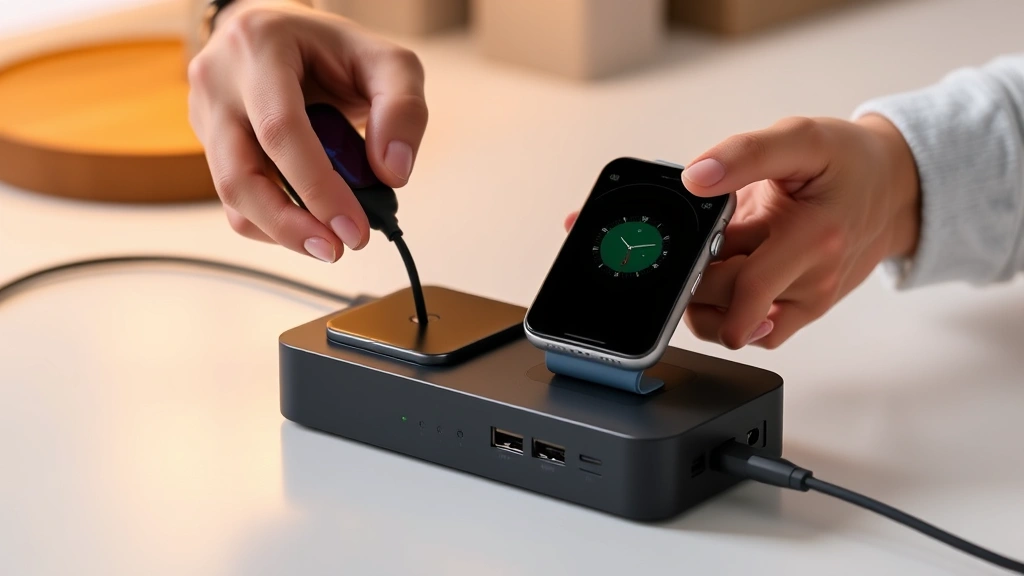
Why You Actually Need a Multi-Device Charging Station
Here’s the reality: the average person now owns at least three to four devices that need charging regularly. Your phone, sure, but also a tablet, smartwatch, wireless earbuds, maybe a portable battery pack. If you’ve got a partner or kids, multiply that by however many people are in your house. Now imagine trying to charge all of that with individual cables scattered across your nightstand, your desk, and mysteriously tangled under your couch cushions.
A good multi-device charging station consolidates all of that chaos into one spot. You’re not just saving space—though that’s definitely a bonus—you’re saving time, reducing clutter, and actually being able to find your cables when you need them. No more hunting for “that one USB-C cable that fits my phone” at 6 AM when you’re already late for work. Everything’s right there, organized, and ready to go.
Beyond the practical stuff, there’s something genuinely satisfying about having a clean setup. Your desk looks better, your bedroom looks less like a tech graveyard, and your stress levels about “Did I remember to charge my watch?” go way down. It’s a small thing, but it genuinely improves your daily life in ways you won’t realize until you have it.
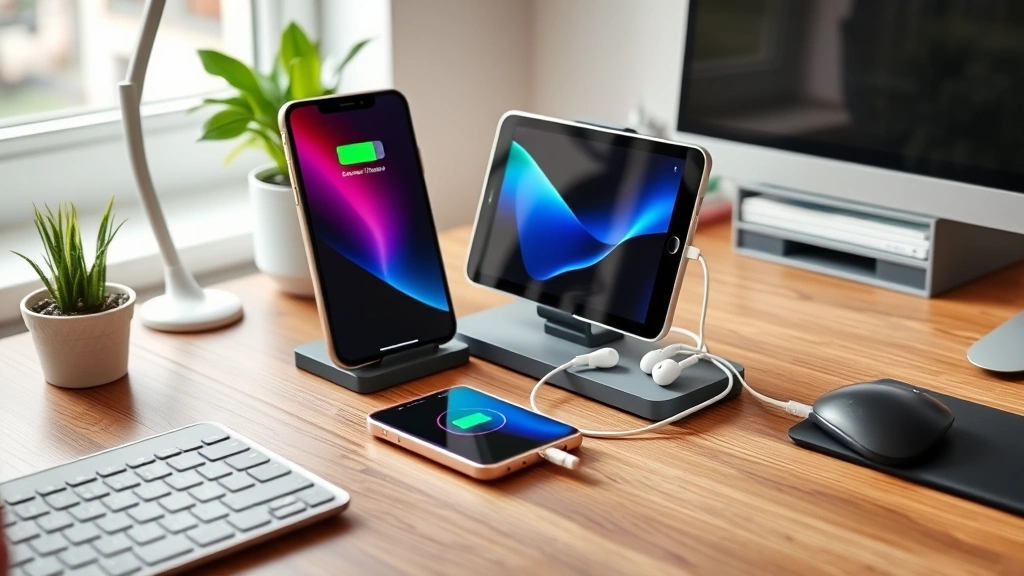
Types of Charging Stations Explained
Not all charging stations are the same, and understanding the different types is crucial to picking the right one for your needs.
Wireless Charging Pads and Stands are the minimalists’ dream. You just plop your phone or watch on them, and boom—it’s charging. No cables to plug in, no hunting for ports. The downside? They’re slower than wired charging, and you need compatible devices. Also, they only typically handle one device at a time unless you go for a multi-pad setup. If you’ve got a newer flagship phone and a smartwatch that supports wireless charging, these are genuinely convenient. Check out The Verge’s tech reviews for comparisons of the best wireless options.
Wired Multi-Port Stations are the workhorses. These typically have multiple USB ports—USB-A, USB-C, or both—and can charge several devices simultaneously at full speed. They’re usually faster than wireless charging, more affordable, and compatible with basically everything. The trade-off is that you’re dealing with cables again, though they’re usually built into the station or managed better than before. These are perfect if you’ve got a mixed ecosystem of devices.
Hybrid Stations combine both wireless and wired charging in one unit. You might get a wireless pad for your phone, USB-C and USB-A ports for other devices, and sometimes even a spot for your smartwatch. They’re more expensive and take up more space, but if you want the best of both worlds, this is your answer. CNET has excellent reviews on hybrid models if you want to compare specific products.
Desktop Docking Stations are the premium option, especially if you work from home or have a dedicated workspace. These often include multiple USB ports, HDMI outputs, ethernet, and sometimes even built-in stands for monitors or tablets. They’re bigger and pricier, but they’re essentially a complete workspace solution. If you’re serious about your setup, this might be worth the investment.
Key Features That Actually Matter
Port Variety and Count is your first consideration. How many devices do you actually need to charge at once? Count them honestly—phone, tablet, watch, earbuds, portable battery, whatever. Then add one more because you’ll inevitably get something new. Make sure the station has enough ports, and ideally a mix of USB-C and USB-A. USB-C is the future, but plenty of devices still rely on USB-A, so having both is smart.
Power Output Matters More Than You Think This is where a lot of people mess up. A charging station with tons of ports is useless if it can’t deliver enough power to charge them all simultaneously at decent speeds. Look for the total wattage—usually measured in watts (W). A decent multi-device station should be at least 65W, ideally 100W or more if you’re charging laptops or multiple power-hungry devices. AnandTech’s detailed breakdowns of power specifications are super helpful here.
Build Quality and Safety shouldn’t be overlooked. You’re literally plugging your expensive devices into this thing multiple times a day. Look for stations with surge protection, temperature control, and good reviews about longevity. Cheap chargers can damage your devices or even pose fire risks—it’s not worth saving $20 if your phone battery gets fried. Check for certifications like FCC or UL approval.
Cable Management is the difference between a station that looks clean and one that looks like a nest of snakes. Some stations have built-in cable clips, dedicated slots for specific device types, or even cable routing built into the design. Others just have loose cables everywhere. Spend a few extra minutes looking at how the cables are managed in product photos.
Footprint and Aesthetics matter because you’re actually going to look at this thing every day. A huge charging brick that looks like it belongs in a 1990s office isn’t going to make your desk feel better. Look for something that fits your space and, honestly, matches your style. There are tons of sleek, minimalist options now that look intentional rather than like an afterthought.
Our Top Picks for Different Needs
For the Minimalist Setup: If you’ve got just a phone and a watch, and you’re willing to compromise on speed for convenience, a single wireless charging pad is honestly all you need. It’s elegant, takes up almost no space, and does one job really well. Look for something from a reputable brand—avoid the $5 Amazon knockoffs.
For the Mixed Device Household: You need a hybrid station or a solid wired multi-port setup. Something with at least 3-4 USB ports, a mix of USB-C and USB-A, and ideally 65W or more of total power output. Brands like Anker, Belkin, and Ugreen make solid options that won’t break the bank but won’t disappoint either.
For the Power User: If you’re charging a laptop, tablet, phone, watch, and earbuds all at once, you need a desktop docking station with serious power delivery. Look for 100W+ output, multiple USB-C ports (at least one supporting Power Delivery), and good cable management. This is where brands like Satechi and OWC really shine.
For the Budget-Conscious Buyer: Don’t cheap out entirely, but you don’t need to spend $200 either. Aim for something in the $30-60 range with solid reviews, at least 65W output, and a mix of port types. Anker’s products consistently hit this sweet spot of good quality at reasonable prices.
Understanding Power Delivery and Wattage
This is the nerdy stuff, but it matters, so stick with me. USB Power Delivery (USB-PD) is a protocol that allows higher wattages to flow through USB-C cables, enabling faster charging for laptops, tablets, and high-powered devices. If you’re charging a MacBook or a modern tablet, you want a station that supports USB-PD.
The wattage is split among all connected devices. So if you have a 100W station and you’re charging five devices, that 100W gets divided up. Some devices get priority (your laptop charging via USB-PD might get 60W, while your phone gets 20W, your watch gets 10W, etc.). This is why knowing your total power needs matters—you want enough headroom that everything charges reasonably fast even when fully loaded.
A good rule of thumb: add up the charging requirements of your most power-hungry devices plus one, then look for a station that exceeds that by at least 20-30%. If your laptop needs 60W and your phone needs 18W, you want at least 100W total capacity to leave room for everything else.
Smart Setup Tips and Cable Management
Once you’ve got your station, the setup matters. Location is everything—put it somewhere you’ll actually use it consistently. For most people, that’s the nightstand or a desk. Make sure it’s accessible and not hidden behind other stuff.
Cable organization is half the battle. Use cable clips, ties, or even just coil cables neatly. Route cables along the back of your desk or nightstand so they’re not visible. Some people use cable sleeves to bundle multiple wires together, which looks cleaner and makes it easier to move the station if needed.
Device placement matters too. Put your most-used devices in the easiest-to-access spots. Your phone should be in the most convenient location, followed by your watch or earbuds. Less frequently charged items can go in secondary spots.
Temperature management is underrated. Make sure your charging station has airflow around it. Don’t stack stuff on top of it, and try not to put it in a hot spot where direct sunlight hits it all day. Excess heat reduces charging efficiency and can degrade batteries faster.
Common Mistakes People Make
Buying too many ports they’ll never use is probably the most common one. You don’t need a 10-port station if you only own four devices. You’re just paying for complexity and extra clutter. Be honest about what you actually need.
Ignoring power specifications is another big one. I’ve seen people buy a station with tons of ports but only 30W total output, then complain that everything charges slowly. Read the specs. They matter.
Choosing aesthetics over functionality is tempting but regrettable. That gorgeous minimalist charging pad might look amazing, but if it’s incompatible with your devices or charges at a snail’s pace, you’ll hate using it. Function first, then optimize for looks.
Not considering cable compatibility before buying can be annoying. Make sure the station includes the cables you need, or that you’re comfortable buying them separately. Some stations come with all cables included; others give you just USB ports and expect you to bring your own.
Forgetting about future-proofing is shortsighted. USB-C is becoming the standard, so prioritize stations with at least one USB-C port even if you don’t need it right now. Your next phone or device will probably use it.
FAQ
How fast does a multi-device charging station actually charge?
It depends on the station’s power output and the device’s charging capability. A good 65W+ station can charge most phones at full speed simultaneously, but if you’re charging five devices at once, each one gets a smaller share of power. Wireless charging is generally slower than wired, typically around 5-15W versus 18-65W for wired. Check your device’s charging specs to know what it supports.
Can a charging station damage my devices?
Not if you buy from a reputable brand with proper safety certifications. Look for surge protection, temperature control, and FCC/UL approval. Cheap knock-off chargers are where problems happen—they might overvolt your devices or cause battery damage. Stick with established brands, and you’ll be fine.
Do I need to worry about leaving my phone on a wireless charger all night?
Modern phones have pretty good charging protection built in, and quality wireless chargers have temperature monitoring. That said, some people prefer to remove their phone once it’s fully charged to avoid unnecessary heat exposure. Most experts say it’s fine, but if you’re paranoid, unplug it once it hits 100%.
What’s the difference between USB-A and USB-C?
USB-C is newer, faster, more versatile, and reversible (no more plugging it in backwards three times). USB-A is the older standard that’s still everywhere. You need both because plenty of devices still use USB-A, but USB-C is the future. A good station has both port types.
Can I use a charging station for my laptop?
Only if it supports USB Power Delivery (USB-PD) with enough wattage. Your laptop’s charging brick will tell you how many watts it needs (usually 45W, 60W, or 100W). The station needs to support at least that much via a USB-C port. Not all multi-device stations do this, so check before buying if laptop charging is important to you. Tom’s Hardware has great comparisons of stations that handle laptop charging.
Should I leave everything plugged in all the time?
It’s generally fine to leave devices on a charger once they’re fully charged, thanks to modern charging protection. That said, batteries degrade slightly faster if constantly trickle-charged, so if you’re really concerned about longevity, unplug once fully charged. For practical purposes though, most people just leave everything connected and don’t worry about it.
What’s the best position for a charging station on my desk?
Somewhere you’ll actually use it consistently, ideally within arm’s reach. Many people prefer the right side of their desk or right side of their nightstand (if they’re right-handed). Make sure it has airflow around it and isn’t in direct sunlight. Some people use a small stand to elevate it slightly, which can improve airflow and make it easier to see your phone screen while it’s charging.