Look, we’ve all been there—you’re scrolling through your phone, tablet, or laptop, and suddenly you realize the screen’s looking a bit… rough. Maybe it’s covered in fingerprints, or there’s some dust stuck under the glass, or worst-case scenario, you’ve got a crack that’s driving you absolutely nuts. Before you panic and start googling “how much does a screen replacement cost,” let’s talk about what you’re actually dealing with and what your options really are.
The truth is, modern gadget screens are simultaneously tougher and more fragile than ever. They’re engineered to be thinner, brighter, and more responsive, which is fantastic—until something goes wrong. But here’s the thing: not every screen issue is a catastrophic disaster, and understanding what you’re looking at can save you hundreds of dollars and a lot of unnecessary stress.
In this guide, we’re diving deep into everything screen-related. Whether you’re worried about scratches, cracks, discoloration, or just general maintenance, I’m going to break down what’s actually worth fixing, what you can live with, and when it’s time to call in the professionals. Let’s get into it.
Understanding Your Screen: What You’re Actually Looking At
Before we start talking fixes, you need to understand what you’re dealing with. Modern device screens aren’t just one layer of glass—they’re actually a sophisticated sandwich of materials, and knowing the difference between them matters a lot when it comes to repair costs and options.
Most smartphones, tablets, and laptops have a protective glass layer on top (usually Gorilla Glass or similar), followed by a digitizer (the touch-sensitive layer that registers your finger taps), then the LCD or OLED display itself, and finally a backlight or other supporting components. Some devices have these layers fused together, while others have them as separate components. This matters because if you crack just the glass but the display underneath still works perfectly, you might have a much cheaper repair option than if the whole assembly is damaged.
The type of screen technology your device uses also affects everything. The Verge has done extensive coverage on display technologies, and understanding whether you’ve got an LCD, OLED, or Mini-LED screen changes how you approach problems. OLED screens, for example, are more prone to burn-in but offer superior contrast. LCD screens are generally more durable but can suffer from backlight issues. These aren’t just specs—they’re directly relevant to what might go wrong and how to fix it.
Also, here’s something a lot of people don’t realize: your device’s screen isn’t just a passive display. It’s actively managing heat, color calibration, and brightness levels. When something goes wrong, it’s not always immediately obvious what the actual problem is. A display that looks dim might have a failing backlight, or it might be a software issue, or your brightness settings might just be turned way down. This is why troubleshooting is so important before you assume you need a replacement.
Types of Screen Damage and What They Mean
Not all screen damage is created equal, and understanding what you’re dealing with is crucial. Let me break down the most common issues and what they actually mean for your device.
Hairline Cracks and Spider Webs
You know those tiny cracks that start from one point and spread outward like a spider web? Those are annoying, but here’s the thing: they usually don’t affect functionality at all. Your screen might work perfectly fine for months or even years with a hairline crack. The problem is it’s going to spread—every time your device gets bumped, the crack propagates a little more. If you’re okay with how it looks and it doesn’t spread to a point where it becomes a safety hazard (sharp edges, glass splinters), you can technically keep using it. That said, if the crack is near an edge or corner, it’s more likely to get worse faster.
Complete Screen Shatters
This is the big one. When your entire screen is shattered, you’ve typically got damage to multiple layers. The good news? Modern devices are often designed so the glass can be replaced without replacing the entire display assembly, at least for flagship phones. The bad news? If the impact was hard enough to shatter the glass completely, there’s a decent chance the digitizer or display underneath took damage too. This is where professional diagnosis becomes really important—sometimes the glass replacement is enough, sometimes you need the whole assembly.
Dead Pixels and Discoloration
A dead pixel or two? That’s honestly just part of the game with modern displays, and most manufacturers won’t do anything about a single pixel. But if you’re seeing entire sections of your screen that are discolored, dark, or showing weird color banding, that’s usually a sign of LCD degradation or a backlight failure. This is also something worth checking before assuming it’s a hardware problem—go into your settings and make sure your display color settings haven’t been accidentally changed.
Touch Responsiveness Issues
If your screen’s cracked but the touch still works, that’s great—you’ve got time to think about repairs. But if the touch stops working in certain areas, or if you’re getting “ghost touches” (the screen registering taps you didn’t make), that’s usually a digitizer problem. The frustrating part? You can’t really fix this at home. The digitizer is bonded to the glass and display, and replacing it requires professional equipment.
Burn-in and Image Retention
This is mostly an OLED problem, though it can happen with other technologies too. If you’re seeing a “ghost image” of something that was on your screen for hours (like a status bar or app icon), that’s image retention. It usually goes away on its own. But if the image stays permanently burned into the screen, that’s burn-in, and unfortunately there’s no fix—you’re looking at a display replacement. This is why OLED devices benefit from features like screen rotation and dimming.
Backlight Bleeding and Light Leakage
If your screen looks darker at the edges or corners, or if you’re seeing weird light patterns especially in dark rooms, that’s backlight bleeding. It’s usually a manufacturing defect or a result of pressure on the screen. It’s annoying, but it’s not necessarily a sign of imminent failure. Some people can live with it indefinitely; others find it unbearable. It’s not something you can fix yourself, but it’s worth documenting if you’re going to seek warranty coverage.
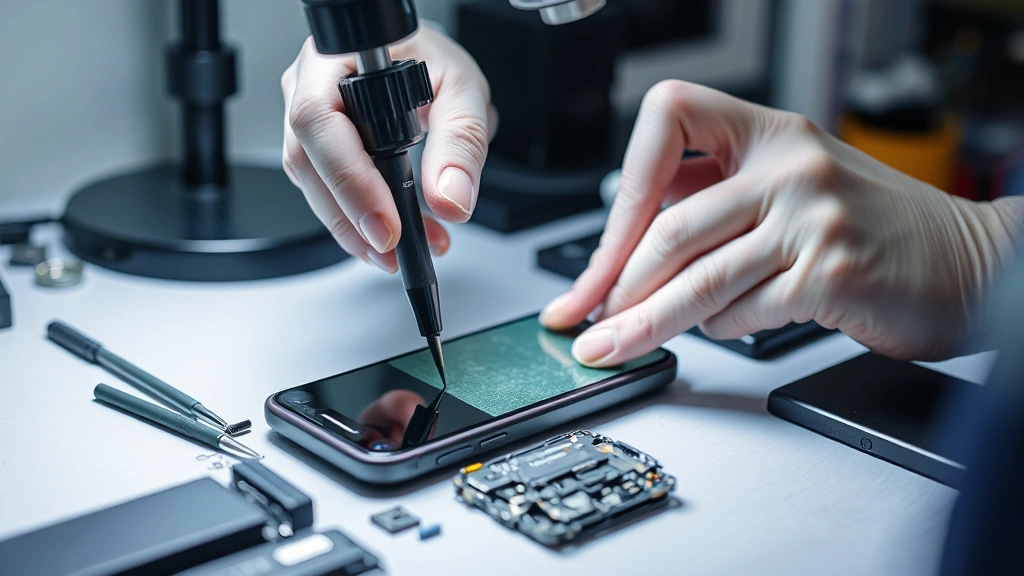
DIY Fixes That Actually Work
Okay, let’s be real—there are some things you can actually do yourself without voiding your warranty or making things worse. Let me be clear about what actually works versus what’s just snake oil.
Cleaning Your Screen Properly
This sounds basic, but you’d be shocked how many “screen problems” are just dust or fingerprints. Use a microfiber cloth—seriously, just a microfiber cloth. Not paper towels, not your shirt, not a random cloth from your kitchen. If you need to use liquid, get a proper screen cleaning solution designed for electronics, or use distilled water with a tiny amount of isopropyl alcohol (like 1:10 ratio). Spray it on the cloth, not directly on the screen, and wipe gently. For stubborn stuff like dried soda or sticky residue, you might need a bit more alcohol, but avoid getting liquid near any ports or edges where it could seep into the device.
Adjusting Display Settings
Before you assume your screen is broken, check your settings. Is brightness turned all the way down? Are you in battery saver mode? Have you messed with color profiles? On most devices, you can adjust color temperature, saturation, and brightness. Sometimes what looks like a broken screen is just a setting that got changed. Go into your display settings and reset them to default if you’re not sure. This is especially true if you’ve recently updated your operating system.
Checking for Software Issues
If your screen’s flickering or showing weird colors, it might be a software glitch rather than hardware failure. Try restarting your device—I know it’s the classic tech support answer, but it genuinely works surprisingly often. If that doesn’t help, try booting into safe mode if your device supports it, or do a soft reset. If the problem goes away, you’ve got a software issue that might need a factory reset. If it persists, you’re probably looking at hardware damage.
Using Screen Protectors Retroactively (Sort Of)
Okay, this isn’t going to fix existing damage, but if you’ve got a cracked screen and you’re waiting for repairs, a screen protector can prevent the crack from spreading and keep glass shards contained. It’s not ideal, but it buys you time. Just make sure it’s installed cleanly—air bubbles can actually make the damage look worse.
What NOT to Do
Please, for the love of all that is holy, don’t try to glue your screen back together with super glue. Don’t use toothpaste to buff out scratches (this actually works on some plastics, but it’ll make your phone look awful). Don’t pour rice on it if it got wet. And absolutely do not try to pry your device open with a butter knife to “fix” internal screen components unless you know what you’re doing and are willing to lose your warranty and probably brick your device.
When to Call a Professional
There’s a pretty clear line between “you can probably handle this” and “please let a professional do this.” If you’re unsure, err on the side of calling a professional. Here’s when you definitely should:
Any Impact Damage with Touch Issues
If your screen cracked, shattered, or took a hard hit and the touch functionality is affected, that’s professional territory. The digitizer is bonded to multiple layers, and replacing it requires special equipment and expertise. You could absolutely make it worse trying to DIY this.
Liquid Damage
Water got inside your device? Don’t immediately freak out, but do get it to a professional as soon as possible. They have tools to assess the damage and potentially save your device. If you try to power it on or charge it, you risk short-circuiting the whole thing. A good repair shop can often dry out the device and replace specific components that got damaged. Check out iFixit for detailed repair guides, but honestly, liquid damage is one of those things where professional help is usually worth the cost.
Display Not Turning On at All
If your screen is completely dark and won’t light up, it could be a backlight failure, a display connector issue, or a power delivery problem. These require diagnosis with specialized equipment. It might be something simple, or it might require component-level repair.
Color Issues and Discoloration
If you’re seeing large sections of your screen that are discolored, have weird color casts, or are showing color banding, that’s usually a display failure. This requires replacement—there’s no fixing it at home.
Burn-in on OLED Displays
If you’ve got permanent burn-in on an OLED screen, you need a display replacement. There are no home remedies that work (despite what you might read on Reddit), and attempting DIY fixes will just waste your time.
Prevention: Keeping Your Screens Safe
This is where you can actually save yourself a ton of money and hassle. Prevention is genuinely cheaper and easier than dealing with damage after the fact.
Screen Protectors: Do They Actually Work?
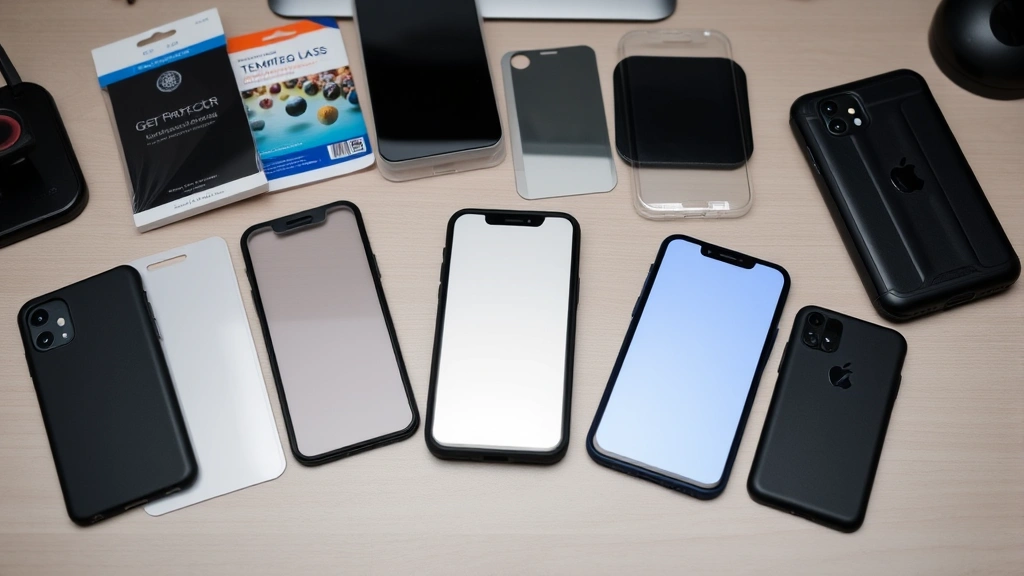
Yes, but with caveats. A good tempered glass screen protector can absolutely save your display from scratches and minor impacts. The best ones are surprisingly good—they’re designed to shatter before your actual screen does, which is exactly what you want. The downside? Cheap ones feel awful, reduce touch sensitivity, and look terrible. If you’re going to use one, spend the money on a decent one. And yes, they do add a tiny bit of thickness and can reduce brightness slightly, but the protection is worth it for most people.
Cases That Actually Protect Screens
Your case matters more than you think. A case with raised edges around the screen can make the difference between a cracked screen and a saved device when you drop it. Look for cases that have a lip that extends above the screen surface—it’s not glamorous, but it works. If you want something slimmer, at least get a case that protects the corners, since that’s where impact damage usually happens first.
Handling Your Device Carefully
I know this sounds obvious, but think about how you actually use your device. Do you set it down screen-down on hard surfaces? Do you carry it loose in a pocket with keys? These habits are screen killers. Try to keep your device screen-up when it’s on a table, and if you’re carrying it in a pocket or bag, use a dedicated pouch or case. It sounds paranoid, but you’re literally protecting something that costs hundreds of dollars to replace.
Environmental Protection
Extreme heat and cold can actually damage screens over time. Don’t leave your device in a hot car or exposed to freezing temperatures for extended periods. Humidity and dust can also cause issues, so if you’re in a dusty environment, be mindful of where your device is sitting. And obviously, keep it away from water and liquids.
Regular Cleaning Habits
Keeping your screen clean isn’t just about looks—dust and debris can actually scratch the screen if you’re not careful about how you handle your device. Develop a habit of wiping your screen regularly with a microfiber cloth. This prevents buildup and lets you catch any damage early before it gets worse.
The Cost Reality Check
Let’s talk money, because that’s often what this decision comes down to. Screen replacement costs vary wildly depending on what device you’ve got and how much damage there is.
Smartphone Screen Replacement
For a recent flagship phone, you’re looking at anywhere from $200 to $500+ for an official replacement through the manufacturer. Third-party repair shops might charge $100-$300. The difference usually comes down to the quality of parts used and the warranty provided. Official repairs usually come with warranties; sketchy third-party shops might not. Budget phones are cheaper to repair (sometimes $50-$150), while premium devices like flagship iPhones or Samsung Galaxy S-series phones cost significantly more.
Tablet Screens
Tablets often have larger screens, so replacement costs can be higher—$150 to $400 depending on the device. iPad replacements through Apple are usually in the $300-$400 range for recent models.
Laptop Screens
This varies wildly. A basic laptop might be $100-$200 to repair, but high-end MacBooks or gaming laptops with specialty displays can run $300-$800. Some laptops have the display integrated into the chassis in a way that requires more labor to replace, which increases costs.
Warranty and Insurance Considerations
If your device is still under warranty, screen damage might be covered depending on your coverage terms. AppleCare+, for example, covers accidental damage including cracked screens for a service fee. If you’ve got device insurance, check what’s covered. Sometimes paying your deductible is cheaper than paying out-of-pocket for a repair. For expensive devices, insurance or extended warranties can actually be worth the cost, especially if you’re accident-prone.
Cost-Benefit Analysis
Here’s where you need to be honest with yourself: if your device is old and a screen replacement costs more than 50% of what a replacement device would cost, it might be time to upgrade. If you’ve got a relatively new device, the repair is usually worth it. But if you’re looking at $400 to fix a 5-year-old phone that you could replace for $500, the math might not make sense.
Choosing a Repair Service
If you’ve decided a professional repair is the way to go, choosing the right service is crucial. Here’s what to look for:
Official Manufacturer Services
Apple, Samsung, Google, and other manufacturers have official repair services. The advantages: they use genuine parts, provide warranties on repairs, and have trained technicians who know your device inside and out. The disadvantages: they’re usually the most expensive option, and they might require an appointment or shipping your device to a service center. For expensive devices or if you’re still under warranty, this is often worth it.
Authorized Third-Party Repair Shops
Many device manufacturers have authorized repair partners. These shops are trained and certified, use approved parts, and can often provide warranty coverage. They’re usually cheaper than official services and might have faster turnaround times. The quality is generally good, though it depends on the specific shop.
Independent Repair Shops
Your local phone repair place might be great, or it might be sketchy. The key is research. Look for reviews, ask about their warranty, confirm they use quality parts, and make sure they’re transparent about costs before they start work. A good independent shop can be cheaper and faster than official services, but you’re taking more of a risk on quality.
Red Flags to Watch For
Avoid shops that won’t give you a quote in writing, that pressure you into repairs you’re not sure about, that use vague language about “genuine” parts (it should say specifically what brand), or that won’t provide any warranty on their work. Also be wary of places that want to keep your device for weeks—most screens can be replaced in a day or two. And if they quote you a price that seems too good to be true, it probably is. Those ultra-cheap repairs often use low-quality parts that fail quickly.
What to Ask Before You Commit
Ask specifically what parts they’re replacing. Ask about their warranty—both on the parts and labor. Ask how long the repair takes. Ask if they’ll back up your data before they start (they should). Ask about their return policy if something goes wrong. A reputable shop will answer all of these questions clearly and without hesitation. Check iFixit’s repair directory for certified repair partners in your area, or look for shops that specialize in your specific device brand.
FAQ
Can I use my device if the screen is cracked but still working?
Technically yes, but it’s not ideal. The crack will likely spread over time with normal use. There’s also a risk of sharp glass edges, and if moisture gets in, it could damage internal components. If the crack is small and you can live with how it looks, you can probably wait a bit before getting it fixed. But don’t wait too long—a small crack often becomes a big problem.
Is it safe to use a cheap screen protector?
A cheap screen protector is better than no screen protector, but not by much. They often have poor touch sensitivity, look terrible, and don’t protect as well as quality ones. If you’re going to use one, spend a few extra dollars on a decent tempered glass protector. It’s worth it.
Will my phone ever be waterproof again after screen repair?
Not necessarily. Most phone repair shops don’t re-seal the device to the original waterproof standard. If water resistance is important to you, ask the repair shop if they can re-seal it, or take it to an official service center. Some shops can do this, but it’s not guaranteed.
How long does a screen replacement take?
Most shops can replace a phone screen in 1-2 hours if they have the part in stock. Tablets and laptops might take longer—sometimes a full day. If they need to order parts, add several days to that timeline. Official service centers might take longer due to appointment availability.
Can screen damage get worse on its own?
Yes. A small crack can spread over time as you use the device normally. Temperature changes, pressure, and vibration can all cause a crack to propagate. The sooner you get it fixed, the less likely you are to end up with catastrophic damage.
Is AppleCare+ or similar insurance worth it for screen protection?
If you’re accident-prone, probably yes. AppleCare+ for iPhones covers accidental damage including cracks for a $99 service fee, which is cheaper than a full replacement. But if you’re careful with your devices, you might be throwing money away. Do the math based on your usage patterns and how much you’d pay out-of-pocket for repairs.
Can I fix burn-in on my OLED screen?
Unfortunately, no. Permanent burn-in can’t be fixed. What you can do is prevent it by avoiding static images on screen for long periods, using the device’s built-in burn-in protection features, and keeping brightness at reasonable levels. If you already have burn-in, you’re looking at a display replacement.